Are you in London, England and attending the Gartner Data & Analytics Summit? Why not drop by and see Actian at Booth #S4 where you can discuss the latest and greatest in databases, hybrid data, analytics, Internet of Things, and software innovation at the InterContinental London – The O2 from Sunday, March 18 through Wednesday, March 21.

Here’s the schedule:

  • Sunday, March 18: 6 – 8 PM, Registration, setup and sponsor welcome drinks.
  • Monday, March 19: 7:30 AM – 7:30 PM.
  • Tuesday, March 20: 7:30 AM – 7:30 PM.
  • Wednesday, March 21: 7:30 AM – 3:45 PM.

We’ll be giving away a variety of items, including some extremely handy webcam covers for your laptop as well as the grand prize: a Sonos One! So stop by and get ready to talk about our product lineup:

Follow us on FacebookInstagramTwitter, and on LinkedIn to stay connected with what we are up to. If you fancy a job to pursue your passion in data management, data integration, and data analytics, check out our careers page and come join our team – WE’RE HIRING!


Interested in jolting your data analytics and database performance? Join Actian in two separate meetings this week in both Detroit, Michigan and Cambridge Massachusetts to talk about hybrid data, performance, analytics, and data integration:

  • Tuesday, March 13: Come to the Jolt Your Performance Breakfast between 7:30–9 AM at the award-winning Apparatus Room Restaurant conveniently located at the Detroit Foundation Hotel. Walt Maguire our VP of Systems Engineering & Steve Jacob, a Sr. Director Sales, will be on hand to deliver a deep dive overview of our technology, discuss real-world use cases, and answer any questions.
  • Wednesday, March 14: If happy hours are more your thing, come to our Jolt Your Performance Happy Hour at Noir Bar in Cambridge, Massachusetts from 5:30 PM to 8:30 PM. Our presenters will be Emma McGrattan, SVP of Systems Engineering & Matt Reeves, Sr Director of Sales.

Click on the links for each meeting to learn more about Actian and register now!


Data lineage is defined as a type of data life cycle. It is a detailed representation of any data over time: its origin, processes, and transformations. Although this isn’t a brand new concept, a paradigm shift is taking place.

Obtaining data lineage from a Data Warehouse, for example, was a pretty simple task. This centralized storage system allowed, “by design,” you to obtain data lineage from the data stored in the same place.

The data ecosystem has been evolving at a very rapid pace since the emergence of Big Data due to the appearance of various technologies and storage systems that complicate information systems in enterprises.

It has become impossible to keep and impose a single centralized tool in organizations. Software and methods used by urbanists and IS architects of the “old world” have become less and less maintainable, making their work obsolete and illegible.

So, How Can You Visualize an Efficient Data Lineage in a Big Data Environment?

To have a global vision of an enterprise’s IS data, new tools are emerging. We are talking about a data catalog. It allows for a maximum amount of metadata from all data storage to be treated via a user-friendly interface. By centralizing all of this information, it is possible to create data lineage in a Big Data environment at different levels:

At the Datasets Level

It can be a table in Oracle, a topic in Kafka, or even a directory in the data lake. A data catalog highlights the processes and datasets that made it possible to create the final dataset.

However, this data lineage standard on its own does not make it possible for data users to answer all of their questions. Among others, these questions remain: What about sensitive data? What columns were created and with what processes? etc.

At Column Level

A more granular way  to approach this topic is to represent the different transformation stages of a dataset in a timeline of actions/events. By selecting a specific field, users will be able to see what columns and actions created it.


The next big data and analytics conference is right around the corner with the Gartner Data & Analytics Summit, hosted at the Gaylord Texan Resort Hotel & Convention Center in Grapevine, Texas from March 5-8, 2018 and Actian will be present, both on the show floor and in a presentation.

Emma McGrattan, SVP of Engineering, will be presenting, “Turning Your Data Lake into a High-Performance Enterprise Data Warehouse” on March 5, 2018, at 5:30 PM in Theater 2 (Exhibit Showcase; Longhorn D). You’ll be able to learn about Actian’s approach to power better business decisions and improve growth and profitability in the hybrid data world.

On the show floor, you can find Actian at Booth #1017 from March 5-7, where you can talk to Actian staff about our product lineup and perhaps win some prizes as a result:

  • Actian Zen Embedded Database enables zero-admin, nano-footprint, hybrid NoSQL & SQL data management. The new IoT edition addresses the needs of ISM and OEM providers.
  • Actian Vector in-memory analytics database is a consistent performance leader on the TPC-H Decision Support Benchmark over the last 7 years.
  • Actian Vector – Community Edition, recently launched on the AWS Marketplace, lets you use our high-speed analytics database on the cloud at no cost other than server instance charges. The Community Edition is also now available in the Azure Marketplace!
  • Actian NoSQL accelerates Agile development for complex object models at Enterprise scale.
  • Actian DataConnect provides lightweight, enterprise-class hybrid data integration.

So come see us on the show floor and learn about Actian, and be sure to see Emma’s presentation to see in person what we can do for you.

Follow us on FacebookInstagramTwitter, and on LinkedIn to stay connected with what we are up to. If you fancy a job to pursue your passion in data management, data integration, and data analytics, check out our careers page and come join our team – WE’RE HIRING!


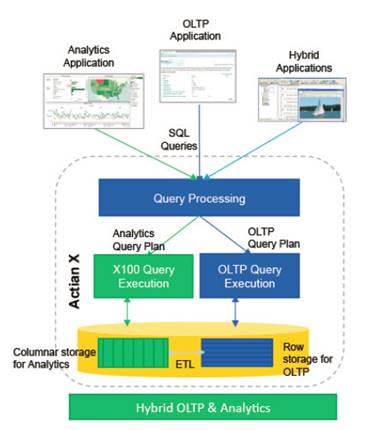
A key feature of the latest update to our hybrid database Ingres 11 is the inclusion of the x100 analytics engine and support for x100 tables. Adding a world-class analytics engine to Ingres enterprise OLTP (OnLine Transaction Processing) capability enables a new class of applications that can mix OLTP and analytic queries – with each query being directed to the appropriate execution engine.

Actian engineers have just delivered an enhancement to Ingres which adds support for X100 table references in database procedures. This allows database procedures and rules to be used to trigger updates, inserts and deletes against X100 tables when inserts, updates and deletes are applied to Ingres tables. This means you can automatically synchronize your OLTP (Ingres) and OLAP (X100) tables, adding new transactional data to your analytics data.

The following example will walk you through the creation of two tables (airport and airport_X100) and the creation of the database procedures and rules that will mirror inserts, updates and deletes from the Ingres table to the X100 table. Take a look and let us know what you think!

This enhancement is delivered via a patch that can be downloaded from esd.actian.com here.

Create an OLTP table (airport) and an OLAP (OnLine Analytical Processing) target (airport_x100):

CREATE TABLE airport ( ap_id INT, ap_iatacode NCHAR(3) NOT NULL, ap_place NVARCHAR(30), ap_name NVARCHAR(50), ap_ccode NCHAR(2))g
commit; g
CREATE TABLE airport_x100 ( ap_id INT, ap_iatacode NCHAR(3) NOT NULL, ap_place NVARCHAR(30), ap_name NVARCHAR(50), ap_ccode NCHAR(2)) with structure=x100g
commitg

First we’ll create a procedure that can be used to mirror inserts from airport into airport_x100:

CREATE PROCEDURE proc_ins_airport_x100 (apid INT NOT NULL NOT DEFAULT, apiatacode NCHAR(3) NOT NULL NOT DEFAULT, applace NVARCHAR(30) NOT NULL NOT DEFAULT, 
     apname NVARCHAR(50) NOT NULL NOT DEFAULT, apccode NCHAR(2) NOT NULL NOT DEFAULT)
     AS BEGIN
          INSERT INTO airport_x100 ( ap_id, ap_iatacode, ap_place, ap_name, ap_ccode)
          VALUES ( :apid, :apiatacode, :applace, :apname, :apccode);
     ENDg

Now we create a rule that will automatically trigger on an insert into airport and fire the procedure proc_ins_airport_x100 with each parameter containing the column values that were part of the insert into airport:

CREATE RULE trg_ins_airport_x100 AFTER INSERT INTO airport
     EXECUTE PROCEDURE proc_ins_airport_x100 (apid = new.ap_id, apiatacode = new.ap_iatacode, applace = new.ap_place, apname = new.ap_name, apccode = new.ap_ccode)g

We insert 4 rows into the OLTP table airport:

INSERT INTO airport VALUES (50000, 'AAA', 'Vector', 'Aomori', 'AU')g
INSERT INTO airport VALUES (50001, 'AA1', 'Vector', 'Tegel', 'AU')g
INSERT INTO airport VALUES (50002, 'AA2', 'Vector', 'Tegel', 'NL')g
INSERT INTO airport VALUES (50003, 'AA3', 'Vector', 'Tegel', 'NL')g

Now we see if our target OLAP table (airport_x100) has been updated:

select ap_id, ap_iatacode as iatacode, cast(ap_place as varchar(20)) as ap_place, cast(ap_name as varchar(20)) as ap_name, ap_ccode from airport_x100;g

+-------------+--------+--------------------+--------------------+--------+
|ap_id        |iatacode|ap_place            |ap_name             |ap_ccode|
+-------------+--------+--------------------+--------------------+--------+
|        50000|AAA     |Vector              |Aomori              |AU      |
|        50001|AA1     |Vector              |Tegel               |AU      |
|        50002|AA2     |Vector              |Tegel               |NL      |
|        50003|AA3     |Vector              |Tegel               |NL      |
+-------------+--------+--------------------+--------------------+--------+
(4 rows)

So the inserts were automatically propagated. Now we take a look at updates. Multiple rules fired on a single condition do not have a defined order of execution. So we take care to ensure only one rule fires or that the order does not affect the end result.

First off we are creating a procedure that will update airport_x100’s ap_id column with the value of the ap_id parameter if airport_x100’s ap_iatacode column matches the apiatacodeold parameter value:

CREATE PROCEDURE proc_upd_airport_x100_01 ( apid INT NOT NULL NOT DEFAULT, apiatacodeold NCHAR(3) NOT NULL NOT DEFAULT)
     AS BEGIN
          UPDATE airport_x100 SET ap_id = :apid WHERE ap_iatacode = :apiatacodeold;
     ENDg

Now we create the rule that triggers the above procedure, it only fires if the ap_id column in the table airport is updated. It is possible to pass the new and/or old value from an update into the called procedure:

CREATE RULE trg_upd_airport_x100_01 AFTER UPDATE(ap_id) of airport
     EXECUTE PROCEDURE proc_upd_airport_x100_01 ( apid = new.ap_id, apiatacodeold = old.ap_iatacode)g

Now we create a second update procedure that will similarly, conditionally update airport_x100’s ap_iatacode column with the supplied value. As well as updating airport_x100 this table will generate pop-up messages when executed. We are not limited to single insert, delete or update statements:

CREATE PROCEDURE proc_upd_airport_x100_02 (apiatacode NCHAR(3) NOT NULL NOT DEFAULT, apiatacodeold NCHAR(3) NOT NULL NOT DEFAULT)
     AS
     DECLARE
          str VARCHAR(30) not null;
     BEGIN
          str = 'apiatacode = ' + :apiatacode;
          MESSAGE :str;
          str = 'apiatacodeold = ' + :apiatacodeold;
          MESSAGE :str;
          UPDATE airport_x100 SET ap_iatacode = :apiatacode WHERE ap_iatacode = :apiatacodeold;
     ENDg

We now create a rule that will fire the above procedure if the ap_iatacode in the table airport is updated:

CREATE RULE trg_upd_airport_x100_02 AFTER UPDATE(ap_iatacode) of airport
     EXECUTE PROCEDURE proc_upd_airport_x100_02 ( apiatacode = new.ap_iatacode, apiatacodeold = old.ap_iatacode)g

We go on to create procedures and rules that will apply updates to other columns in airport_x100. This is not a requirement. Multiple columns can be updated in a single procedure if required:

CREATE PROCEDURE proc_upd_airport_x100_03 (applace NVARCHAR(30) NOT NULL NOT DEFAULT, apiatacodeold NCHAR(3) NOT NULL NOT DEFAULT)
     AS BEGIN
          UPDATE airport_x100 SET ap_place = :applace WHERE ap_iatacode = :apiatacodeold;
     ENDg

CREATE RULE trg_upd_airport_x100_03 AFTER UPDATE(ap_place) of airport
     EXECUTE PROCEDURE proc_upd_airport_x100_03 ( applace = new.ap_place, apiatacodeold = old.ap_iatacode)g

CREATE PROCEDURE proc_upd_airport_x100_04 (apname NVARCHAR(30) NOT NULL NOT DEFAULT, apiatacodeold NCHAR(3) NOT NULL NOT DEFAULT)
     AS BEGIN
          UPDATE airport_x100 SET ap_name = :apname WHERE ap_iatacode = :apiatacodeold;
     ENDg

CREATE RULE trg_upd_airport_x100_04 AFTER UPDATE(ap_name) of airport
     EXECUTE PROCEDURE proc_upd_airport_x100_04 ( apname = new.ap_name, apiatacodeold = old.ap_iatacode)g

CREATE PROCEDURE proc_upd_airport_x100_05 (apccode NVARCHAR(30) NOT NULL NOT DEFAULT, apiatacodeold NCHAR(3) NOT NULL NOT DEFAULT)
     AS BEGIN
          UPDATE airport_x100 SET ap_ccode = :apccode WHERE ap_iatacode = :apiatacodeold;
     ENDg

CREATE RULE trg_upd_airport_x100_05 AFTER UPDATE(ap_ccode) of airport
     EXECUTE PROCEDURE proc_upd_airport_x100_05 ( apccode = new.ap_ccode, apiatacodeold = old.ap_iatacode)g

Now we will perform updates to our transactional data in the airport table to show how the above procedures and rules automatically apply changes to our analytics table airport_x100:

update airport set ap_id = 99999 where ap_id = 50000g

The select shows trg_upd_airport_x100_01 was triggered and executed the procedure proc_upd_airport_x100_01. The single column update has been mirrored into the airport_x100 table:

select ap_id, ap_iatacode as iatacode, cast(ap_place as varchar(20)) as ap_place, cast(ap_name as varchar(20)) as ap_name, ap_ccode from airport_x100;g

+-------------+--------+--------------------+--------------------+--------+
|ap_id        |iatacode|ap_place            |ap_name             |ap_ccode|
+-------------+--------+--------------------+--------------------+--------+
|        99999|AAA     |Vector              |Aomori              |AU      |
|        50001|AA1     |Vector              |Tegel               |AU      |
|        50002|AA2     |Vector              |Tegel               |NL      |
|        50003|AA3     |Vector              |Tegel               |NL      |
+-------------+--------+--------------------+--------------------+--------+
(4 rows)

The next update will trigger the procedure proc_upd_airport_x100_02 which also displays a message when fired. We’ll apply a number of updates to the airport table to show and then select from the analytics table airport_x100 to show how the above databases and rules are automatically applying changes to our analytics data based on transaction that affect our transactional data:

update airport set ap_iatacode = 'AA9' where ap_iatacode = 'AA1'g

     MESSAGE 0: apiatacode = AA9
     MESSAGE 0: apiatacodeold = AA1
     (1 row)
select ap_id, ap_iatacode as iatacode, cast(ap_place as varchar(20)) as ap_place, cast(ap_name as varchar(20)) as ap_name, ap_ccode from airport_x100;g

+-------------+--------+--------------------+--------------------+--------+
|ap_id        |iatacode|ap_place            |ap_name             |ap_ccode|
+-------------+--------+--------------------+--------------------+--------+
|        99999|AAA     |Vector              |Aomori              |AU      |
|        50001|AA9     |Vector              |Tegel               |AU      |
|        50002|AA2     |Vector              |Tegel               |NL      |
|        50003|AA3     |Vector              |Tegel               |NL      |
+-------------+--------+--------------------+--------------------+--------+
(4 rows)
update airport set ap_place = 'VectorUPD' where ap_place = 'Vector'g

(4 rows)
select ap_id, ap_iatacode as iatacode, cast(ap_place as varchar(20)) as ap_place, cast(ap_name as varchar(20)) as ap_name, ap_ccode from airport_x100;g

+-------------+--------+--------------------+--------------------+--------+
|ap_id        |iatacode|ap_place            |ap_name             |ap_ccode|
+-------------+--------+--------------------+--------------------+--------+
|        99999|AAA     |VectorUPD           |Aomori              |AU      |
|        50001|AA9     |VectorUPD           |Tegel               |AU      |
|        50002|AA2     |VectorUPD           |Tegel               |NL      |
|        50003|AA3     |VectorUPD           |Tegel               |NL      |
+-------------+--------+--------------------+--------------------+--------+
(4 rows)
update airport set ap_name = 'TegelUPD' where ap_name = 'Tegel'g

(3 rows)
select ap_id, ap_iatacode as iatacode, cast(ap_place as varchar(20)) as ap_place, cast(ap_name as varchar(20)) as ap_name, ap_ccode from airport_x100;g

+-------------+--------+--------------------+--------------------+--------+
|ap_id        |iatacode|ap_place            |ap_name             |ap_ccode|
+-------------+--------+--------------------+--------------------+--------+
|        99999|AAA     |VectorUPD           |Aomori              |AU      |
|        50001|AA9     |VectorUPD           |TegelUPD            |AU      |
|        50002|AA2     |VectorUPD           |TegelUPD            |NL      |
|        50003|AA3     |VectorUPD           |TegelUPD            |NL      |
+-------------+--------+--------------------+--------------------+--------+
(4 rows)

Now we create a procedure and rule to mirror deletes. In many cases we would want to retain historical data in our analytics tables but we may need to delete rows for compliance reasons. The next procedure and rule we create will delete data from airport_x100 automatically when rows are deleted from the airport table:

CREATE PROCEDURE proc_del_airport_x100_01 (apiatacodeold NCHAR(3) NOT NULL NOT DEFAULT)
     AS BEGIN
          DELETE from airport_x100 WHERE ap_iatacode = :apiatacodeold;
     ENDg
CREATE RULE trg_del_airport_x100_01 AFTER DELETE FROM airport
     EXECUTE PROCEDURE proc_del_airport_x100_01 (apiatacodeold = old.ap_iatacode)g
delete from airport where ap_iatacode = 'AA9'g

(1 row)

This select shows that the row deleted from airport has been automatically deleted from airport_x100:

select ap_id, ap_iatacode as iatacode, cast(ap_place as varchar(20)) as -
     ap_place, cast(ap_name as varchar(20)) as ap_name, ap_ccode from airport_x100;g

+-------------+--------+--------------------+--------------------+--------+
 |ap_id        |iatacode|ap_place            |ap_name             |ap_ccode|
 +-------------+--------+--------------------+--------------------+--------+
 |        99999|AAA     |VectorUPD           |Aomori              |AU      |
 |        50002|AA2     |VectorUPD           |TegelUPD            |NL      |
 |        50003|AA3     |VectorUPD           |TegelUPD            |NL      |
 +-------------+--------+--------------------+--------------------+--------+
 (3 rows)
delete from airport where ap_name = 'TegelUPD'g

(2 rows)

Select shows 2 rows deleted from airport are automatically deleted from airport_x100:

select ap_id, ap_iatacode as iatacode, cast(ap_place as varchar(20)) as ap_place, cast(ap_name as varchar(20)) as ap_name, ap_ccode from airport_x100;g

+-------------+--------+--------------------+--------------------+--------+
|ap_id        |iatacode|ap_place            |ap_name             |ap_ccode|
+-------------+--------+--------------------+--------------------+--------+
|        99999|AAA     |VectorUPD           |Aomori              |AU      |
+-------------+--------+--------------------+--------------------+--------+
(1 row)

These examples show basic mirroring of inserts, updates and deletes from transactional tables to analytics tables to get you started. Much more sophisticated database procedures can be built and the changes applied to your analytics data does not need to be a mirror of the changes to your transactional data. You may want to trigger an insert into your analytics table after a row is deleted from your transactional data to establish an audit trail.

We’d love to hear how you are seamlessly and automatically generating your analytics data from your existing transactional tables. Please post a reply in our community forums to let us know about the cool things you are doing with the Ingres Hybrid Database.


Using a Vector FARM to Make Big Data Analytics Fast and Easy

I’ve been working in the IT industry for a long time. What goes around comes around. My favorite example is how centralized mainframe timesharing gave birth to decentralized client-server computing. Now we are going back to timesharing, but in the cloud. Technology does evolve. Sometimes new ideas seem like good ideas, but they end up being not-so-great, so we go back and reinvent older, but proven ideas.

Take Data Warehousing and Big Data, for example. We’re all amassing all this big data; it doesn’t easily fit all together on one small computer, so we go create a giant computer or, even better, a cluster of small computers that looks like a giant computer to handle the workload.

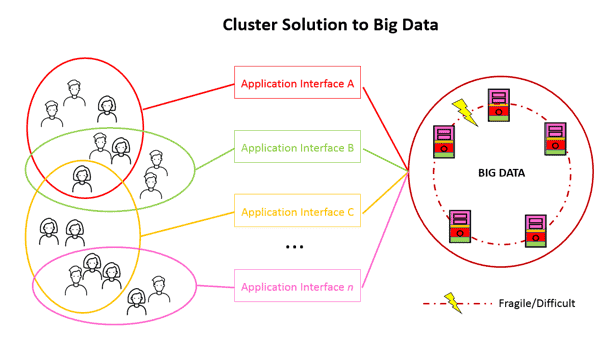
Managing Computer Clusters IS HARD

cluster solution big data

On paper, as in this diagram, the cluster looks simple, but in reality, they are complex to set up, hard to keep balanced and running, they introduce a bunch of new problems like sharding skew and workload management, and they actually not that easy to expand… it’s nuts! The whole ecosystem is fragile and difficult.

Unless you’re one of those few corporations that truly have big singular dataset, the ideal of the giant centralized Data Warehouse of everything, from a practical perspective, is just not that productive or necessary. Why make things harder than they need to be?

What makes more sense is a performant, easy-to-understand, easy-to-setup, easy-to manage, easy-to-change environment. For analytics, I propose you take a step back and consider individual servers, but performant and easy to manage ones.

Consider a Vector Farm to easily harvest business objectives.

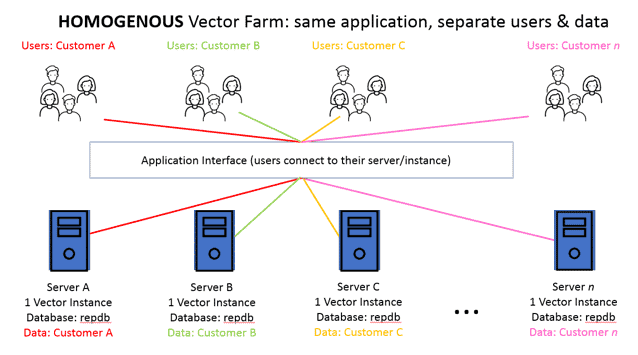
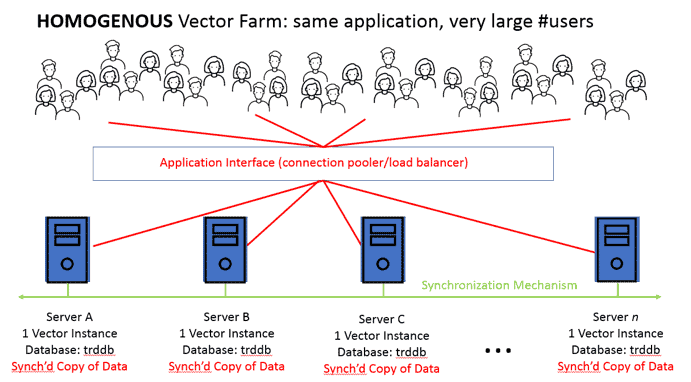
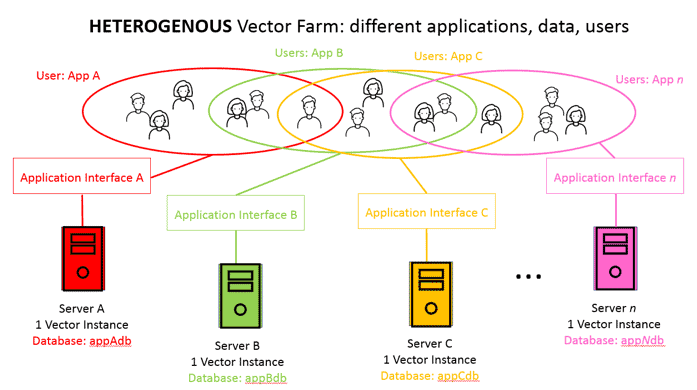
Vector Farms can be very flexible. You could have a Homogenous Vector Farm in which you have collection of individual servers that look alike, each with the same Actian Vector setup on each one. Management is easy because: each server is independent so there’s no cluster complexity, each one has the same database setup, and it’s easy to add/delete servers without affecting the others. Plus, Actian Vector itself requires little to no tuning so there is little individualized setup. You can even introduce slight variations such that you have a Heterogenous Vector Farm. In which case, even though the application setup might be a little different. Actian Vector provides extreme performance and easy-admin, without the complexity of a cluster. Here are examples:

Independent Groups of Like-Users Using the Same Application but Needing Separate Data

This scenario is the simplest. The Vector Farm is especially useful because it easily allows you to separate user data. An example of this could be a multi-national corporation that legally needs to keep European data on-premises and separate from Canadian and United States data etc. Notice here that everything is the same about the database server setup including the database name. Management of all these servers is the same. Actian Vector provides tremendous query performance to all users.

homogenous vector farm

Independent Groups of Different-Size Users Using the Same Application but Needing Separate Data

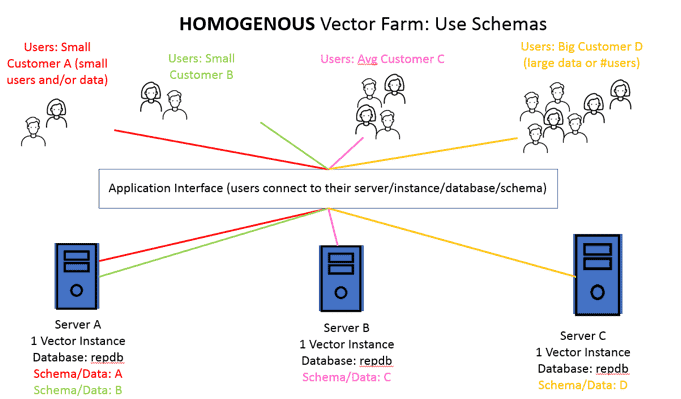
In reality, most groups of users are not the same. Take a software-as-a-service (SAAS) provider for example. A SAAS provider might provide a cloud service to a variety of customers, big and small, over the internet. In this case, the provider certainly would not want to dedicate an entire server (virtual or on-premises) to very small customers. In this case, using schemas (a method of creating separate ownership in a singular database), the provider can group small customer usage on one Vector instance, while servicing other with their own instances. In cases, where these is a particularly large customer, they could make that server bigger, but still maintaining the same structure.  Management of all these servers is still same using schemas. Actian Vector provides tremendous query performance to all users.

schemas with vector farm

A VERY Large Group of Demanding Users

Another scenario is when the analytics user-base is big and these users need reliable, fast performance. An example of this is a financial services firm that offers a trading application. Traders need very-fast, complex analysis on real time data. A complex cluster, with its overhead of many moving parts, physically cannot provide this. In this scenario, a Homogenous Vector Farm can be used as a pool to service all users. A real-time service bus or message queue can be used to synchronize the multiple-servers in real time. Users are balanced to any one of the available servers in the Farm. Again, management is easy because all the servers are exactly the same. Actian Vector (THE WORLD’S FASTEST ANALYTIC DATABASE) provides tremendous response times.

vector farm large

Independent Users and Applications

The final scenario is a truly Heterogenous Vector Farm. In this scenario, users are not necessarily segmented, there are different analytics applications with different database structures.  The applications are different so there is no operational need to keep data in a central location on a complex cluster. Because Actian Vector is so performant, easy to set up and manage, a Vector Farm is an effective way to facilitate support these users and applications.

independent users vector farm

Conclusion

Why torture yourself with a complex cluster if you don’t have to. Because of performance, ease of administration, and little to no custom tuning, it is easy to take advantage of individual servers in an Actian Vector Farm. Because you don’t have to go through the complex analysis of building and maintaining a cluster and because Vector requires little tuning, you can spin up components of your Vector Farm quickly and start “harvesting” business value right away!

More About Actian Vector

Want to learn more about Actian Vector?

You can also download and try Actian Vector yourself (or you can try Vector Community Edition on AWS without having to get an evaluation license). You won’t be disappointed, and if you need help figuring things out, just ask the Community.


Blog | Databases | | 4 min read

Database History in the Making: Ingres Meets X100

background for strata data new york

Doug Inkster is an Actian Fellow with a long history in the database market, starting with IDMS in the 1970s and moving to Ingres in the 1990s.  We asked him to reminisce about the most exciting times in his long career.  Here are some of his thoughts:

In my 40+ years of working with and developing database management software, one of the best days was meeting Peter Boncz and Marcin Żukowski for the first time. I was in Redwood City leading query optimizer training for the performance engineering team at Ingres Corp. (now Actian), and Peter and Marcin were in the Bay Area to give a lecture at Stanford University.

Dan Koren, director of performance engineering, invited them to discuss the MonetDB/X100 technology, which was the subject of Marcin’s Ph.D. research under Peter’s guidance. Dan was a great fan of the MonetDB research done largely by Peter at CWI (the Dutch government-funded centre for research in mathematics and computer science) in Amsterdam and X100 was a follow-on from MonetDB.

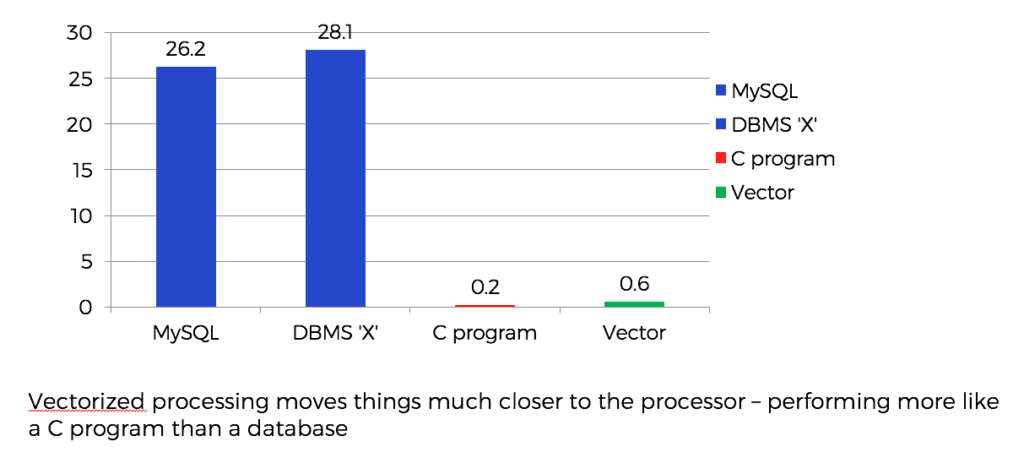
The day started with just the four of us in a conference room at Ingres headquarters and Marcin kicked it off with a quick overview of their Stanford presentation. Peter & Marcin experimented by comparing a variety of row store DBMS’s running the first query from the TPC H benchmark to a hand-written C program equivalent to the same query. The hand-written program was far faster than the fastest DBMS and led to the X100 research project (thus named because of their “modest” goal of beating current database performance by a factor of 100).

X100 Performance Graph

Their research quickly concluded that the complexity of row stores was not limited solely to their representation on disk. The processing of row store data once in memory of a database server is still highly complex. The complexity of the code defies cache attempts to take advantage of locality and in-order instruction execution. In fact, some column stores suffer the same processing problems by converting the column store format to rows once the data is in server memory. Addressing the columns in question, then performing the operations cell by cell consumes many machine cycles.

They had already addressed some of the problem issues with MonetDB, but it still was bound by issues of query complexity and scalability. X100 introduced the idea of processing “vectors” of column data at a single time and streaming them from operator to operator. Rather than computing expressions on the column of one row at a time, or comparing column values from single rows at a time, the X100 execution engine processes operators on vectors of column values with a single invocation of expression handling routines. The routines take the vectors as parameters and consist of simple loops to process all the values in the supplied vectors. This type of code compiles very well in modern computer architectures, taking advantage of the pipelining of loops, benefitting from locality of reference and, in some cases, introducing SIMD instructions (single instruction, multiple data) which can operate on all values of the input vector at the same time.

The result was the concurrent reduction of the instructions per tuple and cycles per instruction, leading to a massive improvement in performance. I had remembered the old scientific computers of the 1970s (CDC, Cray, etc.), which also had the ability to execute certain instructions on vectors of data simultaneously. Back in the day however, those techniques were reserved for highly specialized scientific processing – weather forecasting and so forth. Even the modern re-introduction of such hardware features was more directed towards multi-media applications and computer games. The fact that Peter and Marcin had leveraged them to solve ancient database processing problems was brilliant!

Of course, there was more to their research than just that. A major component of X100 was the idea of using the memory hierarchy – disk to main memory to cache – as effectively as possible. Data is compressed (lightly) on disk and only decompressed when the vectors of values are set to be processed. Sizes of vectors are optimized to balance the I/O throughput with the cache capacity. But for me, the excitement (and amusement at the same time) was in seeing hardware designed for streaming movies and playing Minecraft could be used so effectively in such a fundamental business application as database management.

The subsequent uptake of the X100 technology by Ingres led quickly to record breaking (smashing was more like it) TPC H performance and some of the most enjoyable years of my professional career.

Note:  Ingres is still a popular row-oriented RDBMS supporting mission critical applications, while X100 delivers industry-leading query performance in both the Actian Vector analytic database and the Actian X hybrid database, a combination of Ingres and X100 technologies capable of handling both row-based and column-based tables.


Blog | Data Management | | 3 min read

Connecting to Actian Ingres With PHP and NGINX

circles depicting data processing

Not long ago I spoke at the Actian Hybrid Data Conference in London about connecting Actian Ingres, Actian’s combination of industry-leading transactional and high-speed analytic databases, to the Web. Here we present how to use a very popular web server (reverse proxy, load balancing, etc.) on Linux, NGINX, to do just that. Here’s how you can set up NGINX for the Ingres ODBC driver and a generic PHP ODBC connector on CentOS. Adapting these steps to other Linux distributions, like Ubuntu or SUSE should not be too difficult.

Setting Up PHP With NGINX

Instructions on setting up NGINX can be found online in multiple places. One good set of instructions is How To Install the LEMP stack On CentOS 7. You would only need NGINX and PHP (no need for MySQL – obviously you would use Actian Ingres) and additionally, you would have to have Ingres installed. Once PHP and NGINX are completely set up, you can proceed to the next step.

Setting Up Ingres ODBC With PHP

A generic ODBC package is required for the Ingres ODBC driver to work with PHP. One popular choice is the php-odbc extension. It doesn’t come out of the box with the php package but is usually available on all major Linux distributions as an add-on and it can be easily installed. On CentOS you would run

yum install php-odbc

Note: The PHP version may differ and because of that the name of the packages may differ. For example php may be the name of package for PHP 5.4, but if you want PHP 7.0, then you would install php70w. The name of the additional packages would differ in the same way (e. g. php-odbc vs. php70w-odbc).

Another common ODBC PHP extension is  PHP Data Objects (PDO).

NGINX Configuration

Those of you who are familiar with Apache would note that setting up NGINX is a little more complex given that there are two pieces that are interconnected to run PHP for the web. The NGINX engine is one, but a PHP process manager is also required. This is why there are two sets of settings, one for the NGINX server, the other for php-fpm (PHP process manager). For the Ingres ODBC driver only php-fpm needs to be configured.

As discussed, this example is for CentOS, but it works similarly for other distributions, though the location of the configuration file may be different. To find out what that is, I suggest checking the instructions for setting up php-fpm for the desired distribution.

Edit the php-fpm configuration file (/etc/php-fpm.d/www.conf). Add the II_SYSTEM directory value and the value of the LD_LIBRARY_PATH environment variable to this file as environment parameters as shown in the example below.

env[II_SYSTEM] = /opt/Actian/IngresII
   env[LD_LIBRARY_PATH] = /lib:/usr/lib:/opt/Actian/IngresII/ingres/lib:/opt/Actian/IngresII/ingres/lib/lp32
   env[ODBCSYSINI] = /opt/Actian/IngresII/files

A restart of the php-fpm service would be required after making these configuration changes.

Other Resources

Detailed instructions on setting up PHP with the Ingres ODBC driver along with examples are available at Actian Knowledge Base – Ingres ODBC with PHP.


One of the questions we get asked for Vector Cloud deployments is how to load data from Amazon S3 into Vector in a fast and convenient way. This Blog should help answer some of your questions with a step-by-step guide.

S3 is a popular object store for different types of data – log files, photos, videos, static websites, file backups, exported database/CRM data, IoT data, etc. To perform meaningful analytics on this data, you must be able to move it quickly and directly into your choice of an analytic database for rapid insights into that data.

For the purpose of this blog we are going to be using our recently announced Vector Community Edition AMI on the AWS Marketplace. This free AMI gives the Developer Community a 1-Click deployment option for Vector and is the fastest way to have it running in the AWS Cloud.

Different vendors offer different solutions for loading data and we wanted to deliver a parallel, scalable solution that uses some of the best open-source technologies to provide direct loading from S3 into Vector.

In this blog, we introduce the Spark Vector loader. It’s been built from the ground up to enable Spark to write data into Vector in a parallel way. You don’t need to be an expert on Apache Spark to follow the instructions in this Blog. You can just copy the steps to learn as you go along!

NOTE: If you’re familiar with Vector, vwload is Vector’s native utility to load data in parallel into Vector — it’s one of the fastest ways to get data into Vector. vwload currently supports a local filesystem or HDFS for reading input files. With the Spark Vector loader, you can directly load from filesystems such as S3, Windows Azure Storage Blob, Azure Data Lake, and others. Secondly, you also can achieve parallelization within the same file since Spark automatically partitions a single file across multiple workers for a high degree of read parallelism. With vwload, you need to split the files manually and provide the splits as input to vwload. A third benefit of using the Spark loader is that it selects the file partitions based on the number of machine cores which makes the data loading scale with the number of cores even with a single input file. vwload scales with more cores too, but you need to increase the number of source input files to see this benefit.

Step 1: Access to a Vector Instance

Go ahead and spin up a Vector instance using the Vector Community Edition on the AWS Marketplace. For this demonstration, we recommend launching the instance in the US East Region (N. Virginia) and specifying at least a m4.4xlarge instance (8 physical cores).

NOTE: For performance reasons, you would want to have the EC2 instance in the same region as the S3 bucket where your data resides. In this tutorial, our S3 data resides in US East (N. Virginia).

Step 2: Login to the Vector Instance

After you have your Vector instance running, ssh into it as user actian using your private key and the EC2 instance:

ssh -i <your .pem file> actian@<public DNS of the EC2 instance>

NOTE: For more information about connecting to the Vector instance, see Starting the Vector Command Line Interface.

Step 3: Download Spark

After you are logged in to Vector, create a directory to store the temporary files you will be working with and switch to it:

mkdir ~/work
cd ~/work

Download and extract the pre-built version of Apache Spark:

wget https://www.namesdir.com/mirrors/apache/spark/spark-2.2.0/spark-2.2.0-bin-hadoop2.7.tgz

If the previous wget command does not work or is too slow, point your browser to https://www.apache.org/dyn/closer.lua/spark/spark-2.2.0/spark-2.2.0-bin-hadoop2.7.tgz and replace the URL parameter for wget above with one of the mirrors on that page.

Extract the downloaded Spark archive:

tar xvf spark-2.2.0-bin-hadoop2.7.tgz

Step 4: Setup JRE in Your PATH

A Java Runtime is required to run the Spark Vector loader.

Vector includes a bundled JRE. Set the PATH to include it:

export PATH=/opt/Actian/VectorVW/ingres/jre/bin:${PATH}

Step 5: Download the Spark Vector Loader

Get the Spark Vector loader for Spark 2.x and extract it:

wget https://esdcdn.actian.com/Vector/spark/spark_vector_loader-assembly-2.0-2.tgz

tar xvzf spark_vector_loader-assembly-2.0-2.tgz

Step 6: Set Up Database and Create the Schema

Create the vectordb database that we you use to load data into:

createdb vectordb

Connect to the database using the sql tool:

sql vectordb

Now you will enter a couple of SQL commands in the interactive shell to create the schema that matches with the demo on-time data that you are about to load.

Copy the following commands below and paste them into the shell:

create table ontime(
year integer not null,
quarter i1 not null,
month i1 not null,
dayofmonth i1 not null,
dayofweek i1 not null,
flightdate ansidate not null,
uniquecarrier char(7) not null,
airlineid integer not null,
carrier char(2) default NULL,
tailnum varchar(50) default NULL,
flightnum varchar(10) not null,
originairportid integer default NULL,
originairportseqid integer default NULL,
origincitymarketid integer default NULL,
origin char(5) default NULL,
origincityname varchar(35) not null,
originstate char(2) default NULL,
originstatefips varchar(10) default NULL,
originstatename varchar(46) default NULL,
originwac integer default NULL,
destairportid integer default NULL,
destairportseqid integer default NULL,
destcitymarketid integer default NULL,
dest char(5) default NULL,
destcityname varchar(35) not null,
deststate char(2) default NULL,
deststatefips varchar(10) default NULL,
deststatename varchar(46) default NULL,
destwac integer default NULL,
crsdeptime integer default NULL,
deptime integer default NULL,
depdelay integer default NULL,
depdelayminutes integer default NULL,
depdel15 integer default NULL,
departuredelaygroups integer default NULL,
deptimeblk varchar(9) default NULL,
taxiout integer default NULL,
wheelsoff varchar(10) default NULL,
wheelson varchar(10) default NULL,
taxiin integer default NULL,
crsarrtime integer default NULL,
arrtime integer default NULL,
arrdelay integer default NULL,
arrdelayminutes integer default NULL,
arrdel15 integer default NULL,
arrivaldelaygroups integer default NULL,
arrtimeblk varchar(9) default NULL,
cancelled i1 default NULL,
cancellationcode char(1) default NULL,
diverted i1 default NULL,
crselapsedtime integer default NULL,
actualelapsedtime integer default NULL,
airtime integer default NULL,
flights integer default NULL,
distance integer default NULL,
distancegroup i1 default NULL,
carrierdelay integer default NULL,
weatherdelay integer default NULL,
nasdelay integer default NULL,
securitydelay integer default NULL,
lateaircraftdelay integer default NULL,
firstdeptime varchar(10) default NULL,
totaladdgtime varchar(10) default NULL,
longestaddgtime varchar(10) default NULL,
divairportlandings varchar(10) default NULL,
divreacheddest varchar(10) default NULL,
divactualelapsedtime varchar(10) default NULL,
divarrdelay varchar(10) default NULL,
divdistance varchar(10) default NULL,
div1airport varchar(10) default NULL,
div1airportid integer default NULL,
div1airportseqid integer default NULL,
div1wheelson varchar(10) default NULL,
div1totalgtime varchar(10) default NULL,
div1longestgtime varchar(10) default NULL,
div1wheelsoff varchar(10) default NULL,
div1tailnum varchar(10) default NULL,
div2airport varchar(10) default NULL,
div2airportid integer default NULL,
div2airportseqid integer default NULL,
div2wheelson varchar(10) default NULL,
div2totalgtime varchar(10) default NULL,
div2longestgtime varchar(10) default NULL,
div2wheelsoff varchar(10) default NULL,
div2tailnum varchar(10) default NULL,
div3airport varchar(10) default NULL,
div3airportid integer default NULL,
div3airportseqid integer default NULL,
div3wheelson varchar(10) default NULL,
div3totalgtime varchar(10) default NULL,
div3longestgtime varchar(10) default NULL,
div3wheelsoff varchar(10) default NULL,
div3tailnum varchar(10) default NULL,
div4airport varchar(10) default NULL,
div4airportid integer default NULL,
div4airportseqid integer default NULL,
div4wheelson varchar(10) default NULL,
div4totalgtime varchar(10) default NULL,
div4longestgtime varchar(10) default NULL,
div4wheelsoff varchar(10) default NULL,
div4tailnum varchar(10) default NULL,
div5airport varchar(10) default NULL,
div5airportid integer default NULL,
div5airportseqid integer default NULL,
div5wheelson varchar(10) default NULL,
div5totalgtime varchar(10) default NULL,
div5longestgtime varchar(10) default NULL,
div5wheelsoff varchar(10) default NULL,
div5tailnum varchar(10) default NULL,
lastCol varchar(10) default NULL
)
g

create table carriers(ccode char(2) collate ucs_basic, carrier char(25) collate ucs_basic )
g

INSERT INTO carriers VALUES ('AS','Alaska Airlines (AS)'), ('AA','American Airlines (AA)'), ('DL','Delta Air Lines (DL)'), ('EV','ExpressJet Airlines (EV)'), ('F9','Frontier Airlines (F9)'), ('HA','Hawaiian Airlines (HA)'), ('B6','JetBlue Airways (B6)'), ('OO','SkyWest Airlines (OO)'), ('WN','Southwest Airlines (WN)'), ('NK','Spirit Airlines (NK)'), ('UA','United Airlines (UA)'), ('VX','Virgin America (VX)')
g

Now that you’ve setup the schema, exit out of the sql shell. Enter:

q

You are back in the Linux shell.

Step 7: Get and Set AWS Keys

To access the demo data on S3, you must provide your AWS access keys associated with the IAM user. These are 2 values: access key ID and secret access key.

If you are not familiar with IAM access keys, please read https://docs.aws.amazon.com/IAM/latest/UserGuide/id_credentials_access-keys.html#Using_CreateAccessKey to understand how to retrieve or create access keys.

After you have retrieved your access keys, please set them in your environment as follows:

export AWS_ACCESS_KEY_ID=<Your Access Key ID>
export AWS_SECRET_ACCESS_KEY=<You Secret Access Key>

Step 8: Run Spark-Submit to Perform the Actual Load

Now you’re ready to run the Spark loader. The demo data is supplied in 4 CSV files. Each file part is about 18 GB and contains approximately 43 million rows.

Run the following command to load Part 1:

spark-2.2.0-bin-hadoop2.7/bin/spark-submit --packages org.apache.hadoop:hadoop-aws:2.7.2 --class com.actian.spark_vector.loader.Main /home/actian/work/spark_vector_loader-assembly-2.0.jar load csv -sf "s3a://esdfiles/Vector/actian-ontime/On_Time_Performance_Part1.csv" -vh localhost -vi VW -vd vectordb -tt ontime -sc "," -qc '"'

This runs a Spark job and use the Spark Vector loader to load data from the file On_Time_On_Time_Performance_Part1 into Vector.

On my m4.4xlarge instance in the US East (N. Virginia) region, this took about 4 minutes and 23 seconds.

Once the loading completes, you will see an INFO message on the console log:

INFO VectorRelation: Loaded 43888241 records into table ontime

Repeat for the other 3 parts:

spark-2.2.0-bin-hadoop2.7/bin/spark-submit --packages org.apache.hadoop:hadoop-aws:2.7.2 --class com.actian.spark_vector.loader.Main /home/actian/work/spark_vector_loader-assembly-2.0.jar load csv -sf "s3a://esdfiles/Vector/actian-ontime/On_Time_Performance_Part2.csv" -vh localhost -vi VW -vd vectordb -tt ontime -sc "," -qc '"'

spark-2.2.0-bin-hadoop2.7/bin/spark-submit --packages org.apache.hadoop:hadoop-aws:2.7.2 --class com.actian.spark_vector.loader.Main /home/actian/work/spark_vector_loader-assembly-2.0.jar load csv -sf "s3a://esdfiles/Vector/actian-ontime/On_Time_Performance_Part3.csv" -vh localhost -vi VW -vd vectordb -tt ontime -sc "," -qc '"'

spark-2.2.0-bin-hadoop2.7/bin/spark-submit --packages org.apache.hadoop:hadoop-aws:2.7.2 --class com.actian.spark_vector.loader.Main /home/actian/work/spark_vector_loader-assembly-2.0.jar load csv -sf "s3a://esdfiles/Vector/actian-ontime/On_Time_Performance_Part4.csv" -vh localhost -vi VW -vd vectordb -tt ontime -sc "," -qc '"'

Step 9: Run Queries on the Loaded Data

Let’s quickly verify that the data was loaded into the database.

Connect with the terminal monitor:

sql vectordb

In the sql shell, enter:

rt

All query times henceforth will be recorded and displayed.

Get a count of the rows in the table:

SELECT COUNT(*) from ontimeg

This will display about 175 million rows.

Run another query that lists by year the percentage of flights delayed more than 10 minutes:

SELECT t.year, c1/c2 FROM (select year,count(*)*1000 as c1 from ontime WHERE DepDelay>10 GROUP BY Year) t JOIN (select year,count(*) as c2 from ontime GROUP BY year) t2 ON (t.year=t2.year);g

You would see the query results as well as the time that Vector took to execute the query. You can also now run more sample analytic queries listed at https://docs.actian.com/vector/AWS/index.html#page/GetStart%2FMoreSampleQueries.htm%23 and observe the query times.

To Delete vectordb

To delete the demo database, enter the following command in the Linux shell:

destroydb vectordb

Summary

That concludes the demo on how you can quickly load S3 data into Vector using the Spark Vector loader.

On a side note, if you would like to alter the data before loading it into Vector, you can do the necessary transformations in Spark and then load data into Vector using our Spark Vector Connector.

If you have any further comments or questions visit the Actian Vector forum and ask away! We’ll try to get your post answered as soon as we can. The Knowledge Base is also a great source of information should you need it.


Blog | Actian Life | | 1 min read

Jana Whitcomb Joins as VP, Channel Partnerships & Business Development

Jana Whitcomb

I am excited to be at Actian and working with a Bay Area company again to help build our partner and business development organization! While driving the 101 (with all its crazy traffic), I’m reminded of my first job out of college – sales at Otis Elevator. Yes, people actually sell elevators – I helped build out the Cisco campus and the Crossroads buildings. It was while selling elevators in the Bay Area and living in Palo Alto that I got to wondering what everyone is up to here.  Seems like a lot of growth and nice cars, so I asked my neighbor, “What do you do?” and he said, “Sell software.” Long story short, I ended up at my first software sales job at Oracle.

With over 20 years in the business now it seems like a long time since my first day rollerblading on University Avenue. Born and raised in Kirkland, Washington, I moved back pretty soon after I arrived in the Bay Area and now live in Sammamish, Washington with my wonderful husband and stud of a dog Fred. I enjoy driving around in Nanabug, running, golfing and hanging with friends. And rooting for the Huskies – go DAWGS!


Blog | Databases | | 2 min read

Insight to Insights

Insight to Insights

A fellow recent hire at Actian, Walter Maguire, told me that many organizations get frustrated with having to wait into the late morning for decision support databases to be loaded and indexed or OLAP cubes to be populated with transactional data before sales analysis can be performed. This is not a new problem. I remember when I worked for British Telecom, our biggest worry was to complete the overnight batch updates to our mainframe CA-IDMS database, so we could start the IBM CICS transaction processing service, allowing employees to accept bill payments and check balances.

In the retail business, knowing how products are sold is critical. In the days before in-store POS systems sent daily updates to HQ, I worked at Coppernob, which owned 126 Top Shop stores. Every Saturday night, couriers collected Kimble tags containing bar codes that we scanned on Sunday to create reports showing sales across the UK. The Ingres database would index the sales tables to work out what designs were hot that week.

Fast forward to the present, and modern fashion titans like Kiabi are leveraging the power of Actian Vector for an in-depth analysis of sales data, utilizing cutting-edge predictive analytics to fine-tune their marketing strategies, particularly focusing on markdowns. By doing so, they can now efficiently track and optimize their marketing promotions, pinpointing the most effective markdowns to drive sales. Kiabi’s integration of Actian Vector has revolutionized the speed at which they can extract valuable insights, propelling their decision-making process to new heights. The comparison between using their traditional Oracle RDMS and the game-changing Actian Vector is starkly illustrated in the performance difference showcased in the chart below:

Kiabi’s performance test of Actian Vector query acceleration compared to standard Oracle

Having the ability to bypass the bulk update and indexing process gives organizations more time to gain more insights.


We’re pleased to announce that Actian Vector 5.0 Community Edition now includes support for Mac OS X via Docker. Over the last few years Mac OS X has become increasingly popular with Developers, as has Docker, the virtualization platform that allows you to bundle applications along with their native OS and run them in lightweight containers across a variety of platforms including OS X. Deploying Actian Vector on a Mac using Docker dramatically reduces setup time and complexity compared to prior versions that relied on Linux virtual machines.

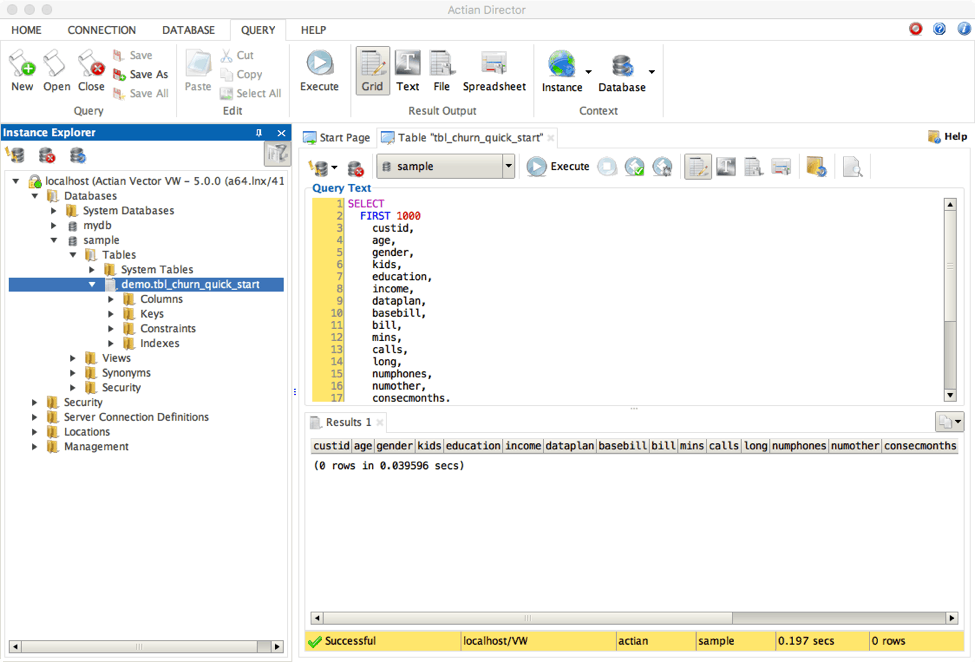
Actian Vector Community Edition Mac OS X users will also benefit from the latest release of Actian Director, which now also includes Mac support via a native Mac installer. Actian Director is a desktop application that makes it easier for Actian Vector users to manage databases, tables, servers (and their components), administer security (users, groups, roles, and profiles), and create, store, and execute queries.

Getting Started With Actian Vector and Docker for Mac OS X

To get started, first register and download the Actian Vector Community Edition.

Then create a work directory, and copy the .tgz file downloaded into that location.

Next, download the zip from the Actian Github repository, extract the Dockerfile and copy that to the work location. You should now have a work directory that looks something like this:

mymac:Docker hanje04$ pwd
/Users/hanje04/Projects/Docker
mymac:Docker hanje04$ ls
Dockerfile
actian-vector-5.0.0-412-community-linux-x86_64.tgz

If you haven’t already done so, download and install Docker and Kitematic (optional, but quite handy if you don’t want to just use Docker from the command line).

Open a Terminal window (Applications->Utilities->Terminal) and run the following command which will download a minimal Centos 7 machine image, then install Actian Vector into it:

mymac:Docker hanje04$ docker build -t actian/vector5.0:community .
Sending build context to Docker daemon  31.74kB
Step 1/17 : FROM centos:7

<loads and loads of output>

Successfully built 7cb12d07e583
Successfully tagged actian/vector5.0:community

If all goes well, a new image will be created:

mymac:Docker hanje04$ docker images
REPOSITORY          TAG                 IMAGE ID            CREATED             SIZE
actian/vector5.0    community           7cb12d07e583        29 seconds ago      1.92GB

Now we can launch a container from this image.

mymac:Docker hanje04$ docker run –name vector actian/vector5.0:community
Actian Vector (5.0.0)

Vector/ingstart

Checking host “localhost” for system resources required to run Vector…

A new container gets created, and Vector will be started. Running the container this way will show you the Vector startup details, and continue running in the foreground. To stop it, hit Ctrl-C and Vector and the container will shut down.

You can also launch the image in the background. We can use the –d flag to run it as a daemon:

mymac:Docker hanje04$ docker run –name vector -d actian/vector5.0:community ef050ac8643cdb8ed04f909c622b1c3b4c49fcc08e731e3c2bbc6e774f260752

mymac:Docker hanje04$ docker ps
CONTAINER ID        IMAGE                        COMMAND             CREATED             STATUS              PORTS                                        NAMES
ef050ac8643c        actian/vector5.0:community   “dockerctl”         20 hours ago        Up 20 hours         16902/tcp, 27832/tcp, 27839/tcp, 44223/tcp   vector

If you’ve already created an image, you will get an error if you issue a second “docker run” command using the same name. After the container has been initially created it can be stopped and restarted without losing the data:

mymac:Docker hanje04$ docker stop vector
vector
hanje04-osx:tmp hanje04$ docker start vector
vector

If you need to recreate the image, you need to stop and remove it first:

mymac:Docker hanje04$ docker stop vector
vector
hanje04-osx:tmp hanje04$ docker rm vector
vector

NOTE: This will completely destroy the image along with any data or databases.

Once we have a running container we can login and use the instance:

mymac:Docker hanje04$ docker exec -it vector bash
[root@1118133200b1 /]# createdb mydb
Creating database ‘mydb’ . . .

Creating DBMS System Catalogs . . .
Modifying DBMS System Catalogs . . .
Creating Standard Catalog Interface . . .
Creating Front-end System Catalogs . . .

Creation of database ‘mydb’ completed successfully.
[root@1118133200b1 /]# sql mydb
TERMINAL MONITOR Copyright 2016 Actian Corporation
Vector Linux Version VW 5.0.0 (a64.lnx/412) login
Thu Nov 16 12:18:15 2017
Enter g to execute commands, “help helpg” for general help,
“help tmg” for terminal monitor help, q to quit

continue
*

Getting Started With Actian Director for Mac OS X

You may also want to connect to this instance from an external application, e.g. via Actian Director which has also recently been made available for OS/X. To do so you need to map the corresponding ports in the image to those on the host machine. For Director this would be 16902 and 44223.

hanje04-osx:Docker hanje04$ docker run –name vector -d -p 16902:16902 -p 44223:44223 actian/vector5.0:community
be6b51f7a2e7d1997b94e370c44d93d1a099761bee20cd2cceea0cb76c349e15
hanje04-osx:Docker hanje04$ docker port vector
44223/tcp -> 0.0.0.0:44223
16902/tcp -> 0.0.0.0:16902

For JDBC connections 27839 needs to be mapped, for ODBC or Net connections 27832.

NOTE: If you change these mapped ports after the container is started (e.g. via Kitematic), the container will be re-created from scratch, destroying any data you may have loaded into the database.

Before you can connect, a database password must be set in the container. To do this, connect to the container as before and run the following:

hanje04-osx:Docker hanje04$ docker exec -it vector bash
[root@be6b51f7a2e7 /]# sql iidbdb
TERMINAL MONITOR Copyright 2016 Actian Corporation
Vector Linux Version VW 5.0.0 (a64.lnx/412) login
Thu Nov 16 16:13:56 2017
Enter g to execute commands, “help helpg” for general help,
“help tmg” for terminal monitor help, q to quit

continue
* alter user actian with password=newdbpasswordg
Executing . . .

continue
*
Your SQL statement(s) have been committed.

Vector Version VW 5.0.0 (a64.lnx/412) logout

After installing and launching Actian Director, the Vector instance in Docker will appear locally to Director. Simply click on the “Connect to instance” button to connect. Enter “localhost” as the instance, “actian” as the Authenticated User, the password you just set and hit connect.

VectorDocker

Experience the Power of Vector Analytics

Now that you are all set up, it’s time to experience the power of Vector Analytics. You can refer to the Actian Vector 5.0 user guide to get familiar with configuring and managing Vector, important concepts, usage scenarios, and developing applications.

Please check the Actian Vector forum and Knowledge Base if you get stuck or have any questions.