
Añade la búsqueda vectorial a tu aplicación FastAPI con VectorAI DB


Principales conclusiones
- Implementa la búsqueda semántica en FastAPI con una configuración local sencilla, en lugar de recurrir a una infraestructura en la nube más compleja.
- Crea un punto final de importación que incorpore las descripciones de los productos y las almacene junto con los metadatos.
- Crea un punto final de búsqueda que muestre productos en función de su significado, y no solo de palabras clave exactas.
- Añade filtros estructurados, como la categoría, directamente en la búsqueda vectorial.
- Los próximos pasos son la compatibilidad con el procesamiento asíncrono, la búsqueda híbrida y unos filtros más completos para su uso en producción.
La incorporación de la búsqueda semántica a una aplicación FastAPI suele empezar con algunas dificultades. La mayoría de las guías orientan a los desarrolladores hacia servicios en la nube que requieren la creación de una cuenta y claves API, o hacia entornos locales que dependen de múltiples servicios antes incluso de escribir ningún código útil.
Esta sobrecarga se produce incluso antes de que se haya creado la funcionalidad, lo que desvía el esfuerzo del desarrollo de la API hacia la configuración de la infraestructura.
Este tutorial adopta un enfoque más sencillo. Actian VectorAI DB se ejecuta como un único contenedor de Docker y se conecta a través de un cliente de Python o JavaScript. Para las primeras fases de desarrollo y creación de prototipos, no necesitas una cuenta en la nube, claves de API ni múltiples servicios. Instala la base de datos y el cliente para empezar a crear tu API. En comparación con las configuraciones que dependen de servicios gestionados o pilas de múltiples contenedores, esto reduce el tiempo de configuración, los costes y el número de elementos a gestionar.
En este tutorial, crearás una pequeña API de búsqueda de productos para ilustrarlo con un ejemplo concreto. El objetivo es permitir a los usuarios realizar búsquedas por significado, en lugar de por palabras clave exactas. Por ejemplo, una consulta como «algo abrigado para llevar en invierno» debería mostrar chaquetas o jerséis, aunque esas palabras exactas no aparezcan en la descripción del producto.
Al finalizar este tutorial, tendrás una aplicación FastAPI funcional con búsqueda semántica que se ejecuta de forma local, utilizando una configuración que podrás ejecutar, probar y ampliar sin necesidad de infraestructura adicional.
Configuración
En esta sección, pondrás en marcha VectorAI DB y configurarás tu proyecto FastAPI utilizando uv. Al final, tendrás una base de datos vectorial en funcionamiento y un entorno de Python listo para conectarse a ella.
Requisitos previos
Para seguir los pasos, instala las siguientes herramientas en tu red local:
Iniciar la base de datos Actian VectorAI
Ejecuta VectorAI DB como un único contenedor de Docker. Crea un archivo docker-compose.yml con el siguiente contenido:
services:
  vectorai:
    image: williamimoh/actian-vectorai-db:latest
    platform: linux/amd64
    container_name: vectorai_db
    ports:
      - "50051:50051"
    volumes:
      # vector data persists across restarts
      - ./data:/app/data
    environment:
      - VECTORAI_LOG_LEVEL=info
    restart: unless-stopped
Iniciar el servicio:
docker compose up -dAhora tienes VectorAI DB en ejecución localmente en el puerto 50051.
Crea tu proyecto FastAPI con Uv
Ahora configura tu proyecto de Python. Si no tienes instalado uv, instálalo primero.
Inicia un nuevo proyecto en tu directorio actual ejecutando este comando:
uv init .
uv venv
Instala FastAPI, el cliente de Python de VectorAI DB y la dependencia del modelo de incrustación:
uv add fastapi uvicorn sentence-transformersRegístrate en la edición comunitaria de Actian VectorAI DB.Una vez te hayas registrado, recibirás instrucciones para configurar el cliente, ya sea descargando el archivo binario o ejecutándolo con un contenedor de Docker, según prefieras.
Instala el SDK de Python de VectorAI DB de la siguiente manera:
uv add actian-vectorai-clientComprueba la conexión
Crea un script sencillo llamado test_connection.py para comprobar que tu aplicación se conecta a la base de datos de VectorAI:
from actian_vectorai import VectorAIClient

VECTORAI_HOST = "localhost:50051"

with VectorAIClient(VECTORAI_HOST) as client:

    # Health check

    info = client.health_check()

    print(f"Connected to {info['title']} v{info['version']}")
Comprueba esta conexión de la siguiente manera:
uv run test_connection.py
Si todo funciona correctamente, debería aparecer un mensaje indicando que la conexión se ha establecido con éxito.

Comprueba la conexión
Ya estás listo para definir tu modelo de datos y empezar a crear tu API.
Crear el punto final de ingesta
Crearás un punto final POST /ingest que acepte una lista de productos, incorpore cada descripción y almacene los resultados en la base de datos de VectorAI. Esto te permitirá enviar una lista JSON de productos a tu API y tenerlos listos para su búsqueda.
Empieza por el modelo de datos y la configuración de la colección. Crea un archivo main.py con el siguiente contenido:
from fastapi import FastAPI

from pydantic import BaseModel

from sentence_transformers import SentenceTransformer

from actian_vectorai import VectorAIClient, VectorParams, Distance, PointStruct, CollectionExistsError

from typing import List

from contextlib import asynccontextmanager

COLLECTION = "products_collection"

DIMENSION = 384  # all-MiniLM-L6-v2 produces 384-dimensional vectors

model = SentenceTransformer("all-MiniLM-L6-v2")

class Product(BaseModel):

    id: int

    name: str

    description: str

    category: str

    price: float

@asynccontextmanager
async def lifespan(app: FastAPI):
    # Startup
    with VectorAIClient("localhost:50051") as client:
        try:
            client.collections.create(
                COLLECTION,
                vectors_config=VectorParams(size=DIMENSION, distance=Distance.Cosine)
            )
        except CollectionExistsError:
            pass
    yield

app = FastAPI(lifespan=lifespan)
Utiliza all-MiniLM-L6-v2 . Se trata de un modelo de 22,7 millones de parámetros que se ejecuta en la CPU y genera vectores de 384 dimensiones. Ofrece la velocidad suficiente para el desarrollo local y una gran precisión para la búsqueda de productos. La colección utiliza la distancia coseno, que mide el ángulo entre vectores en lugar de su magnitud. Esto funciona bien para las representaciones de texto, ya que se centra en el significado más que en la longitud de la descripción.
Ahora prepara la punto punto final de ingesta.
@app.post("/ingest")

def ingest(products: List[Product]):

    descriptions = [p.description for p in products]

    embeddings = model.encode(descriptions, convert_to_numpy=True)

    points = [

        PointStruct(

            id=p.id,

            vector=embeddings[i].tolist(),

            payload={

                "name": p.name,

                "category": p.category,

                "price": p.price,

            }

        )

        for i, p in enumerate(products)

    ]

    with VectorAIClient("localhost:50051") as client:

        client.points.upsert(COLLECTION, points)

    return {"inserted": len(points)}
Esto hace lo siguiente:
- Extrae todas las descripciones de los productos y las recopila en una lista para que puedas insertarlas de una sola vez.
- Genera representaciones utilizando el modelo all-MiniLM-L6-v2 .
- Convierte cada producto en un PointStruct con un identificador, un vector y una carga útil.
- Almacena metadatos útiles, como el nombre, la categoría y el precio, junto con el vector.
- Inserta todos los puntos en la base de datos de VectorAI en una sola solicitud.
Crear el punto final de búsqueda
Para obtener los cinco productos más similares, la implementación incluye un punto final GET /search que acepta una consulta de texto y un filtro de categoría opcional. El punto final incorpora la consulta, realiza una búsqueda vectorial en la base de datos de VectorAI y devuelve los resultados más relevantes.
Este paso completa el proceso de búsqueda, pasando de la introducción de texto sin procesar a resultados ordenados semánticamente en una sola solicitud.
¿Por qué es importante este filtro?
El filtro por categorías es donde VectorAI DB mejora la experiencia del desarrollador. Con FAISS, lo habitual es realizar primero una búsqueda vectorial completa y, a continuación, filtrar los resultados en Python. Eso significa que se desperdicia potencia de cálculo en resultados que luego se descartarán.
VectorAI DB aplica filtros durante la operación de búsqueda. Solo tiene en cuenta los vectores que coinciden durante la recuperación. Esto hace que la búsqueda sea eficiente y más fácil de entender.
Implementar el punto final
Añade las siguientes importaciones y el punto final a tu archivo main.py :
from actian_vectorai import FilterBuilder, Field

@app.get("/search")

def search(query: str, category: str = None, top_k: int = 5):

    query_vector = model.encode([query], convert_to_numpy=True)[0].tolist()

    search_filter = None

    if category:

        search_filter = FilterBuilder().must(Field("category").eq(category)).build()

    with VectorAIClient("localhost:50051") as client:

        results = client.points.search(

            COLLECTION,

            vector=query_vector,

            limit=top_k,

            filter=search_filter

        )

    return [

        {

            "id": r.id,

            "score": round(r.score, 4),

            "name": r.payload["name"],

            "category": r.payload["category"],

            "price": r.payload["price"],

        }

        for r in results

    ]
Cómo funciona
- Convertir la consulta del usuario en una representación.
- Crea un filtro solo si se ha especificado una categoría.
- Envía tanto el vector como el filtro a VectorAI DB en una sola solicitud.
- Muestra los resultados más relevantes junto con sus puntuaciones de similitud y sus metadatos.
Los objetos de filtro son objetos tipados de Python. Esto ayuda a FastAPI a detectar errores de forma temprana y mantiene la coherencia en la estructura de tus consultas.
Cuando no se especifica ninguna categoría, search_filter se mantiene como None. En ese caso, la búsqueda se realiza en todos los productos.
Ejecútalo
Inicia VectorAI DB y, a continuación, inicia FastAPI. Dos comandos.
docker-compose up -d
uv run uvicorn main:app –reload
En otra ventana de terminal, importa tres productos de muestra:
curl -X POST http://localhost:8000/ingest \

  -H "Content-Type: application/json" \

  -d '[

    {"id": 1, "name": "Cashmere Scarf", "description": "Soft cashmere scarf, ideal for cold weather", "category": "clothing", "price": 49.00},

    {"id": 2, "name": "Bluetooth Speaker", "description": "Portable waterproof speaker with 12-hour battery", "category": "electronics", "price": 59.99},

    {"id": 3, "name": "Trail Mix", "description": "Mixed nuts and dried fruit, high-energy snack", "category": "food", "price": 8.50}

  ]'
Recibes una respuesta:
{“inserted”: 3}
Realiza una búsqueda semántica con un filtro de categoría:
curl "http://localhost:8000/search?query=something+warm+for+winter&category=clothing"Deberías obtener la siguiente respuesta:

Búsqueda por categoría
Ejecuta la misma consulta sin el filtro para ver todas las categorías ordenadas por relevancia:
curl -s "http://localhost:8000/search?query=something+warm+for+winter" | jqLa bufanda sigue obteniendo la puntuación más alta. El altavoz y la mezcla de frutos secos vuelven a aparecer con puntuaciones más bajas porque sus descripciones presentan menos coincidencia semántica con la consulta.
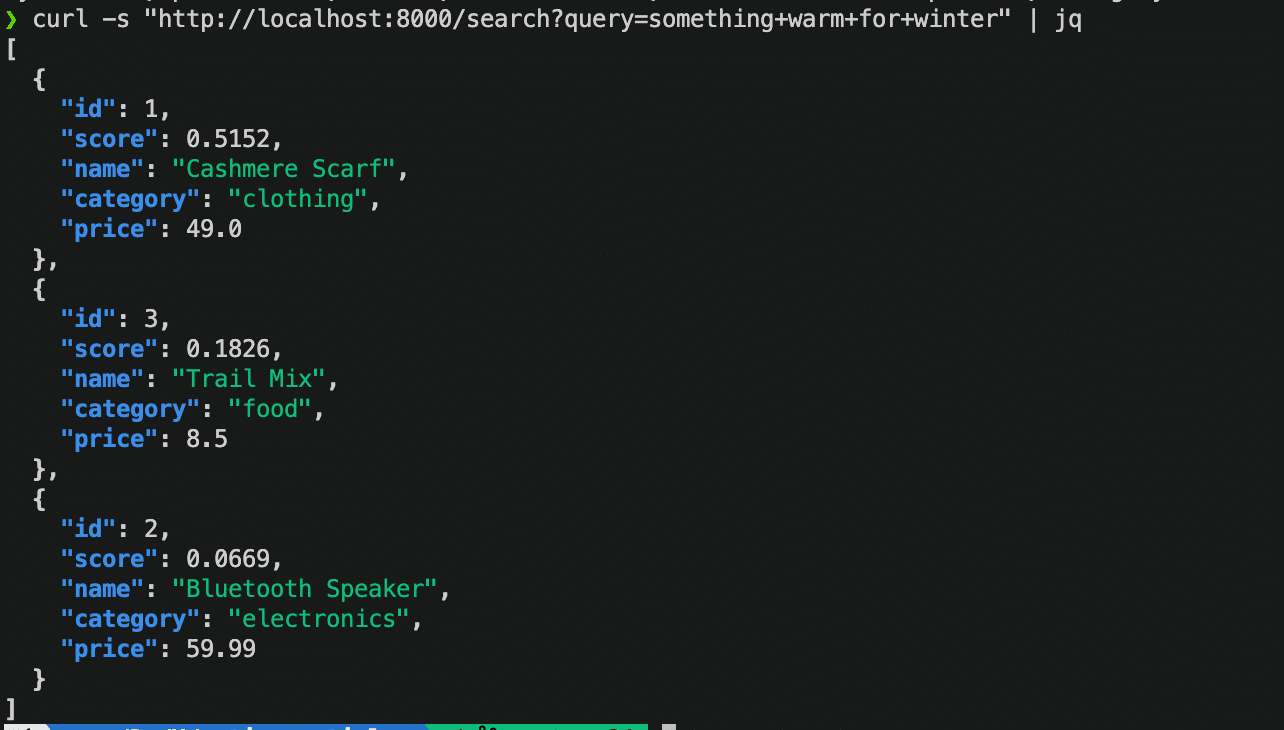
Búsqueda sin categoría
Hasta ahora, has creado la arquitectura tal y como se muestra en la imagen.
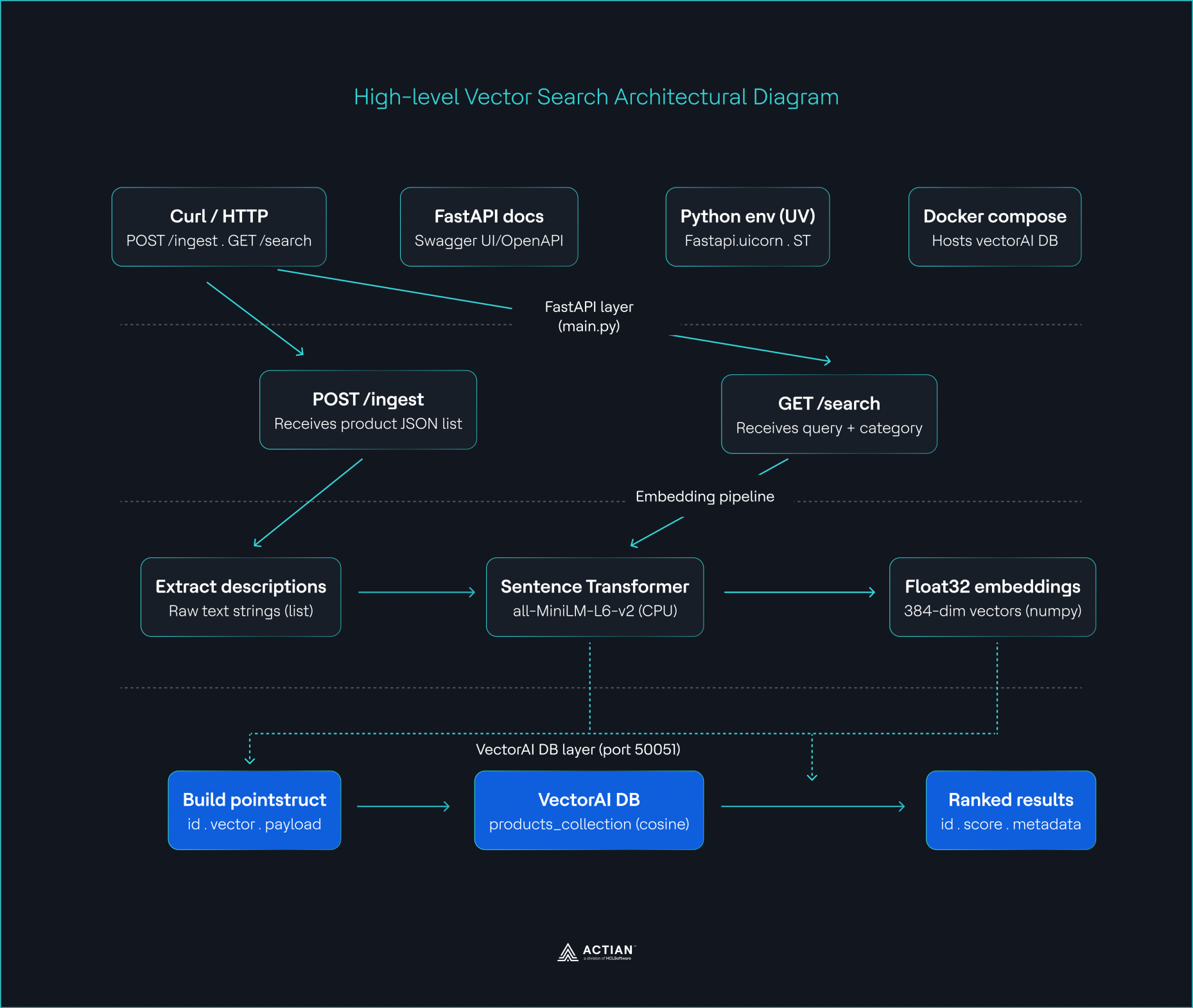
Diagrama arquitectónico de alto nivel
Veamos qué vamos a crear a continuación.
Qué construir a continuación
Esta configuración funciona bien para el desarrollo local y cargas de trabajo pequeñas. El siguiente paso es prepararla para un mayor rendimiento y patrones de búsqueda más avanzados.
Utiliza el cliente asíncrono para las cargas de trabajo de producción
La implementación actual utiliza un cliente síncrono, que funciona bien para el desarrollo local y las pruebas a pequeña escala, pero limita el rendimiento a medida que aumenta la concurrencia. Cada llamada a la base de datos bloquea el hilo de la solicitud hasta que finaliza, lo que reduce el rendimiento general bajo carga.
VectorAI DB ofrece un AsyncVectorAIClient que elimina este cuello de botella. Se integra con el modelo asíncrono de FastAPI, lo que permite que los puntos finales gestionen otras solicitudes mientras esperan a que finalicen las operaciones de la base de datos. Este enfoque resulta especialmente importante para las búsquedas simultáneas, la ingesta por lotes y las actualizaciones de datos en segundo plano.
En un entorno de producción, este cambio también se complementa muy bien con la ejecución de varios trabajadores de uvicorn. Juntos, permiten que tu servicio se escale horizontalmente sin modificar tu lógica principal.
Añadir búsqueda híbrida
La similitud vectorial por sí sola funciona bien cuando la consulta es imprecisa o descriptiva, ya que se centra en el significado más que en las palabras exactas. Sin embargo, puede presentar dificultades en los casos en los que la precisión es importante, especialmente con nombres de productos, números de modelo o términos relacionados con marcas.
VectorAI DB combina la similitud vectorial con la coincidencia de palabras clave en una única consulta. El componente vectorial capta el significado semántico, mientras que el componente de palabras clave garantiza que los términos exactos no se pierdan en la traducción. Ambas señales contribuyen a la clasificación final.
La búsqueda híbrida resulta útil en situaciones reales en las que los usuarios combinan intención y precisión en una misma consulta. Por ejemplo, una búsqueda como «zapatillas de running Nike talla 42» contiene tanto una intención semántica (zapatillas de running para uso deportivo) como requisitos exactos (Nike y talla 42). La búsqueda híbrida garantiza que no se pierda ninguna de estas señales, lo que mejora la calidad de los resultados sin que tengas que añadir lógica adicional por tu parte.
Ampliar la lógica de filtrado y clasificación
De momento, tu búsqueda solo filtra por categoría, lo cual es suficiente para una demostración sencilla del producto. En aplicaciones reales, el filtrado se vuelve más dinámico, ya que los usuarios esperan poder acotar los resultados en función de múltiples condiciones.
Puedes ampliar tus filtros para que admitan criterios como rangos de precios, disponibilidad de existencias, marcas o cualquier otro atributo estructurado de tu conjunto de datos. El sistema de filtros tipados de VectorAI DB facilita esta tarea, ya que los filtros se crean como objetos estructurados de Python en lugar de diccionarios de consultas ad hoc. Esto reduce los errores y mantiene la coherencia de tu lógica de búsqueda con el resto de tu aplicación FastAPI.
A medida que crece el conjunto de datos, estos filtros se vuelven esenciales para controlar el espacio de resultados antes de la clasificación. La búsqueda vectorial sigue encargándose de la relevancia, mientras que el filtrado reduce el conjunto de datos a los registros que cumplen los criterios del usuario.
Conclusión
En este tutorial, has creado un sistema completo de búsqueda semántica utilizando FastAPI y VectorAI DB. Has pasado de un proyecto en blanco a una API operativa capaz de comprender consultas en lenguaje natural y devolver resultados relevantes basados en el significado, y no solo en palabras clave.
Has creado un canal de ingestión que convierte las descripciones de los productos en representaciones utilizando all-MiniLM-L6-v2 y las almacena en una colección de vectores con metadatos. A continuación, has creado un punto final de búsqueda que realiza la incrustación de las consultas de los usuarios y recupera los productos más relevantes mediante la similitud vectorial, con la posibilidad de aplicar filtros opcionales para restricciones estructuradas, como la categoría.
Para añadir la búsqueda vectorial a una aplicación FastAPI no se necesita una pila compleja ni un servicio en la nube externo. VectorAI DB se ejecuta como un único contenedor y se integra directamente a través de un cliente de Python, lo que facilita pasar rápidamente de la configuración a la implementación.
A partir de aquí, puedes ampliar el sistema con clientes asíncronos, búsqueda híbrida y una lógica de filtrado más avanzada a medida que tu aplicación evolucione hacia cargas de trabajo más preparadas para la producción.
Consulta la documentación de Vector AI DB y el repositorio de GitHub para conocer las actualizaciones y los detalles de implementación.
Regístrate en Actian VectorAI DB Community Edition y empieza a desarrollar hoy mismo.

Mantente conectado
Te ofrecemos información detallada sobre los datos.
(por ejemplo, sales@..., support@...)
